
In Sage X3, the Sales Invoice Inquiry function is widely used to review sales invoices and related transactions. By default, this inquiry only displays records coming from the Sales module. However, there may be scenarios where you also need to view AP/AR (Customer BP Invoice) records alongside your sales invoices.
This document will walk you through the steps to include AP/AR records in your Sales Invoice Inquiry results.
Navigation Path
To access the Invoice Inquiry screen:
– Go to Sales Module
– Navigate to Inquiries
– Click on List of Invoices
Steps to Display AP/AR Records
1. Enter Filter Criteria
– On the Invoice Inquiry screen, provide the required header details (such as customer, date range, or invoice number) to filter the records.
– Click on Search.
– At this point, Sage X3 will only return results from the Sales module.
2. Add Criteria for AP/AR Module
– To include AP/AR (Customer BP Invoice) records, click the Criteria button on the inquiry screen.
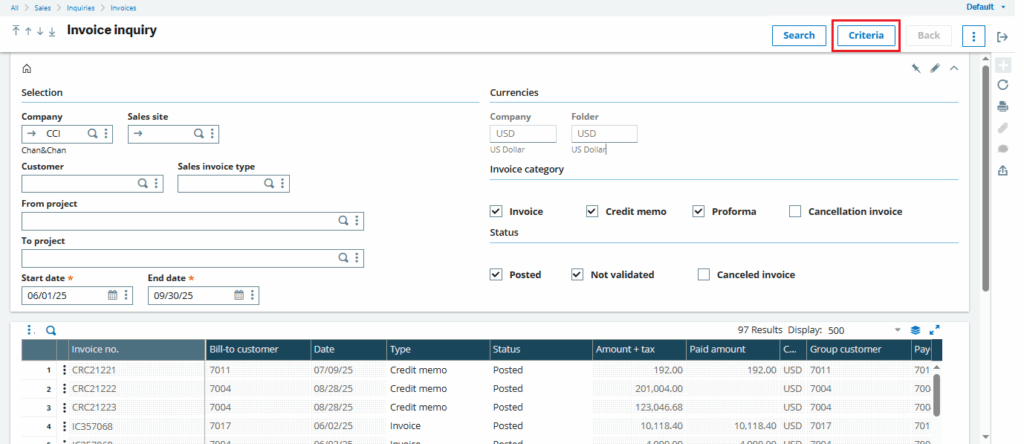
– In the Criteria window, navigate to the Module tab.
– Select the AP/AR Module from the list.
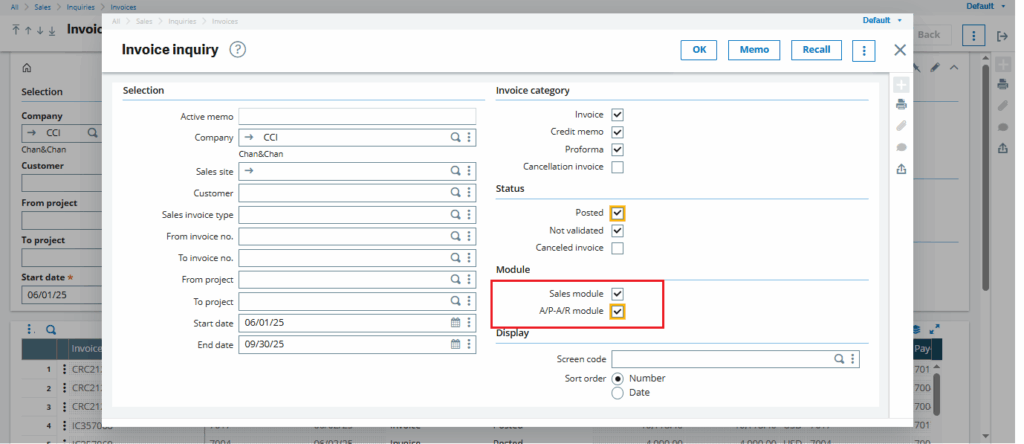
– Click OK to confirm.
3. View Combined Records
– Once the AP/AR module is added to the criteria, the system will display both Sales module invoices and AP/AR invoices in the same grid.
– This allows you to review all relevant invoices in one consolidated view.
By default, the Sales Invoice Inquiry in Sage X3 only shows Sales module records. With a simple adjustment in the criteria, you can also display AP/AR (Customer BP Invoice) records alongside them. This approach gives you a consolidated invoice view that improves efficiency and reduces the need to navigate across multiple modules.