• Who We Are
    • About Us
    • Factor - D
    • Our Networks
    • Accolades
  • What We do

    SERVICES

    • Consulting / Implementation
    • Migration
    • Development

    OUR SOLUTIONS

    • GUMU Integration
    • BPortaly
    • Sales Commission
    • Shipping
    • IOT

    COMPREHENSIVE SERVICES FOR

    ERP

    • Acumatica
    • Sage Intacct
    • Sage X3
    • Sage 300
    • Sage 100
    • Sage 500

    CRM

    • Salesforce
    • D365 CRM
    • Sage CRM
    • Creatio

    Other Solutions

    • E-commerce
    • EDI
    • POS
  • Resources
    • Case Study
    • Blogs
    • Videos
    • Ebooks
    • News
  • +1 888 221 6661
Contact us
Career |
  • Africa
  • Middle East

Sage X3 – Tips, Tricks and Components

Discover the unmatched potential of Sage X3 with our exclusive blogs. Greytrix is a seasoned Sage expert offering a comprehensive range of Sage X3 services to empower businesses with higher productivity and growth. Here, we share our knowledge and the latest technology trends on Sage X3 through insightful blogs, aiming to enhance your understanding of Sage X3 as an ERP software. Stay updated with our regular posts to leverage the ERP to its full potential.

How to Reconcile Bank Entries by Amount in Sage X3

By Greytrix | December 11, 2025
0 Comment

Bank reconciliation is a critical process for ensuring that your organization’s financial records align with the actual transactions in your bank account. In Sage X3, reconciling entries by date and amount can be streamlined with a few systematic steps. This post will guide you through the process of reconciling bank entries using these criteria, including how to create a journal entry (JE) and utilize the Proposal feature in the Bank Reconciliation function.

Step-by-Step: Reconciling Bank Entries by Amount and Date

Step 1:

Before you begin reconciling, ensure that all bank transactions are entered into the system correctly.

  1. You can verify this using the given path as
    Navigate to A/P-A/R Accounting > Bank transactions > Bank statement Entry.

Step 2: Open the Bank Reconciliation Function

  1. Go to A/P-A/R Accounting > Bank transactions > Bank statement Reconciliation.
  2. Select the relevant bank account and reconciliation date.
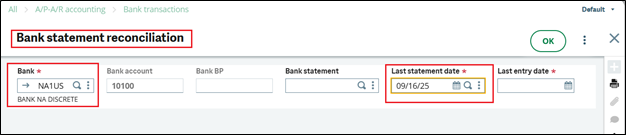
Bank statement reconciliation
Fig01: Bank statement reconciliation

Step 3: Use the “Proposal” button for Automatic Matching

Sage X3 provides a Proposal button that allows automatic reconciliation of entries based on specific criteria like date and amount.

  1. Click on the Proposal button.
Bank statement reconciliation with data
Fig02: Bank statement reconciliation with data

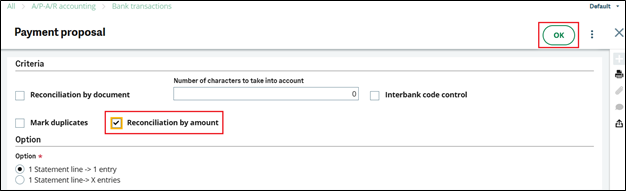
Step 4: Enable “Reconcile by Amount” Option

  1. In the Proposal window:
  2. Locate and check the box labeled “Reconcile by amount”.
  3. Click OK to proceed.
Payment proposal
Fig03: Payment proposal

Once selected, Sage X3 will attempt to automatically match and select all bank entries that align by amount.

Step 5: Review and Confirm the Reconciliation

  1. After clicking OK, Sage X3 will highlight the matched entries in the bank reconciliation screen.
  2. Check the checkboxes on lines as per amount and Click on Reconciliation button.
  3. If all the data looks good, click on save.
  4. Carefully review the selected transactions to ensure accuracy.
  5. If all matched correctly, validate the reconciliation to complete the process.
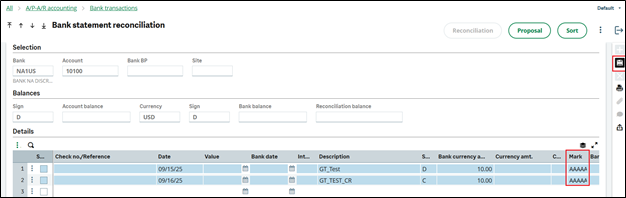
Bank statement reconciliation with Mark
Fig04: Bank statement reconciliation with Mark

Bank reconciliation in Sage X3 doesn’t have to be a manual, time-consuming task. By leveraging the Proposal tool and enabling Reconcile by amount, you can simplify the process and ensure your records stay accurate. Whether you’re closing the month or preparing for audit, following these steps can save both time and trouble.

Category: Sage ERP X3 Greytrix Sage X3 standard Tips Uncategorized Tags: Account, bank, bank data, bank entries, bank statement, reconcile bank, sage enterprise management, Sage ERP X3, Sage X3, Sage X3 Blogs, Sage X3 Functional blogs, Sage X3 technical blogs, sagex3
Post navigation
← How Modern Distilleries Achieve Scale and Compliance with Sage X3 How to Display AP/AR (Customer BP Invoice) Records on Sales Invoice Inquiry in Sage X3 →
traceability management erp webinar

Greytrix Website and Blogs

  • Greytrix
  • Greytrix Africa
  • Sage 100 & 500 ERP Tips and Tricks
  • Sage 300 – Tips, Tricks and Components
  • Sage CRM – Tips, Tricks and Components
  • Salesforce.com Tips and Tricks by Greytrix
  • Sage Intacct – Tips, Tricks and Components
sage crm and sage x3 integration

Categories

  • Configuration
  • Debug
  • FAQ
  • Features
  • Installation
  • Integration
  • Sage X3 Consulting
  • Tips

Archives

Awards

Premier Partner of the Year
  Premier Partner of the Year
Platinum Partner of the Year
        Platinum Partner of the Year
The CEO Story
                     The CEO Story
Gold Partner pf the Year
          Gold Partner of the Year
Top Excellence Distributor
           Top Excellence Distributor
  • na.sales@greytrix.com
  • +1 888 221 6661
  • B301, 3rd Floor, Everest Nivara Infotech Park, MIDC, Turbhe,
    Navi Mumbai 400 705. India

Our Global Locations >>

Who We Are

  • About Us
  • Factor - D
  • Our Network
  • Accolades
  • Career
  •  
  •  

Services

  • Consultation & Implementation
  • Migration
  • Development

Solutions

  • GUMUTM Integration
  • BPortaly
  • Sales Commission
  • Shipping
  • IOT
  •  
  •  

ERP

  • Acumatica
  • Sage Intacct
  • Sage X3
  • Sage 300
  • Sage 100
  • Sage 500

CRM

  • Salesforce
  • D365 CRM
  • Sage CRM
  • Creatio
  •  
  •  
  •  

Other Solutions

  • E-commerce
  • EDI
  • POS

Resources

  • Case Study
  • Blogs
  • Videos
  • E-books
  • News
  •  
  •  

Connect

  • Contact Us
  • Privacy Policy
  • Terms Of Use
  •  

© 2025. Greytrix, All Rights Reserved