
In Sage X3, the stock history inquiry is a powerful tool that enables users to view detailed information on inventory movements over a specified time period. By default, Sage X3 is configured to display stock history for a predefined number of days. However, this default setting may not align with your organization’s reporting or operational needs.
Adjusting the default stock history days allows businesses to customize the inquiry view to reflect a more relevant time frame—either extending or narrowing the period—thereby enhancing inventory tracking, audit accuracy, and decision-making efficiency.
You might consider changing the stock history days in the following cases:
- You need an extended view of a product’s movement history for better tracking and analysis.
- You want to export a comprehensive set of movement data to Excel for trend analysis and reporting.
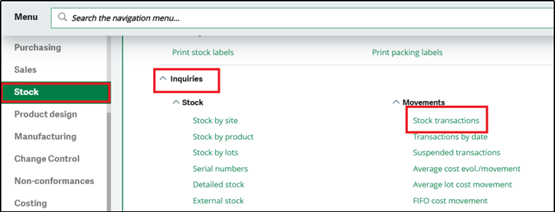
Navigate to : Stocks–> Inquiries–> Stock transaction
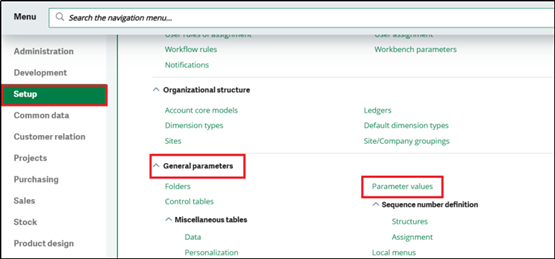
The following steps will guide you on how to adjust the number of days to better align with your business needs and processes. Navigate to : Setup–> General Parameters–>Parameter values
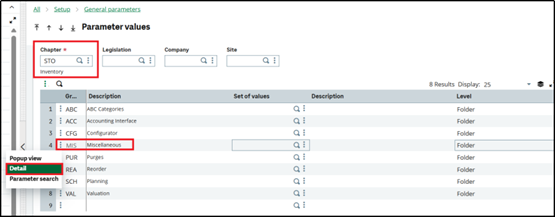
Select the STO Inventory chapter then click on the ellipsis on the Miscellaneous (MIS) option and click Detail as shown in below screenshot.
In the parameter INQMVSLTI (Transaction Inquiry History), you can modify the numeric value to suit your business needs. By default, it is set to 8, but you can change it—for example, to 365 as shown below. Click “OK” at the top of the screen to save your changes.
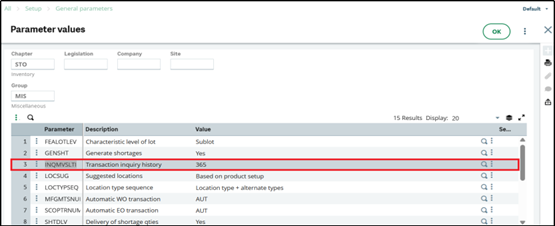
Click the Save icon on the parameters screen to apply the changes. Typically, you’ll need to log out of Sage X3 and log back in for the updates to take effect.
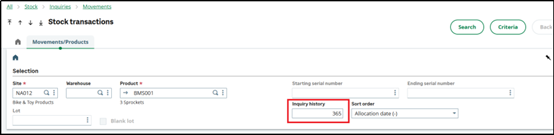
Your stock inquiries will now default to the new number of days specified.
Adjusting the default stock history days in Sage X3 allows you to better align system settings with your business reporting needs. Whether you’re analyzing long-term inventory trends or retrieving historical transaction data, customizing this parameter provides greater visibility and flexibility. By following the simple steps to update the INQMVSLTI parameter, you can ensure your inventory inquiries reflect the time frames most relevant to your operations.