
To add stock to a product on a site in Sage X3, use the Miscellaneous Receipt function. This allows a user to increase the inventory on hand of a product without the issuing a purchase order or a work order.
Steps:
1.Go to Stock > Miscellaneous Receipts
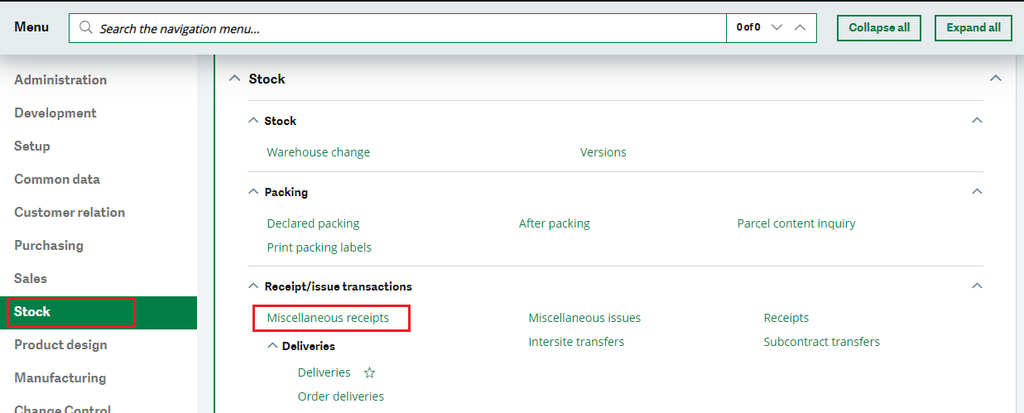
Fig 1: Miscellaneous Receipts Navigation
2.Select Transaction Type “All Misc Stock Receipts Full Entry”
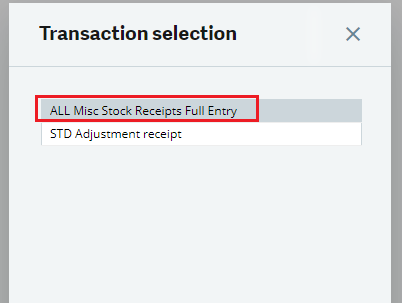
Fig 2: Transaction Type
3.Right Side Click on Add icon.
4.Enter Site, Product and Quantity.
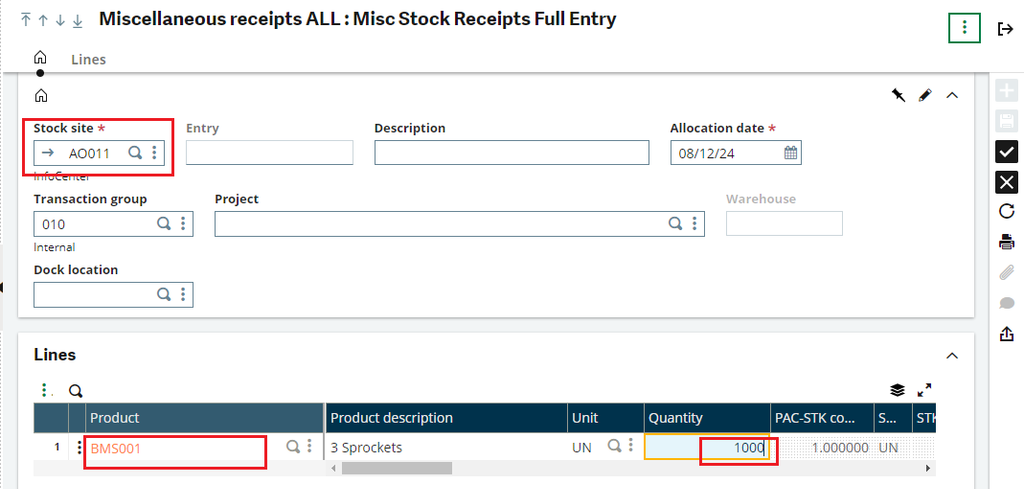
5.Scroll to right and we can set the status of stock, Location

Fig 4: Stock Location
6.Click on create icon from right side.
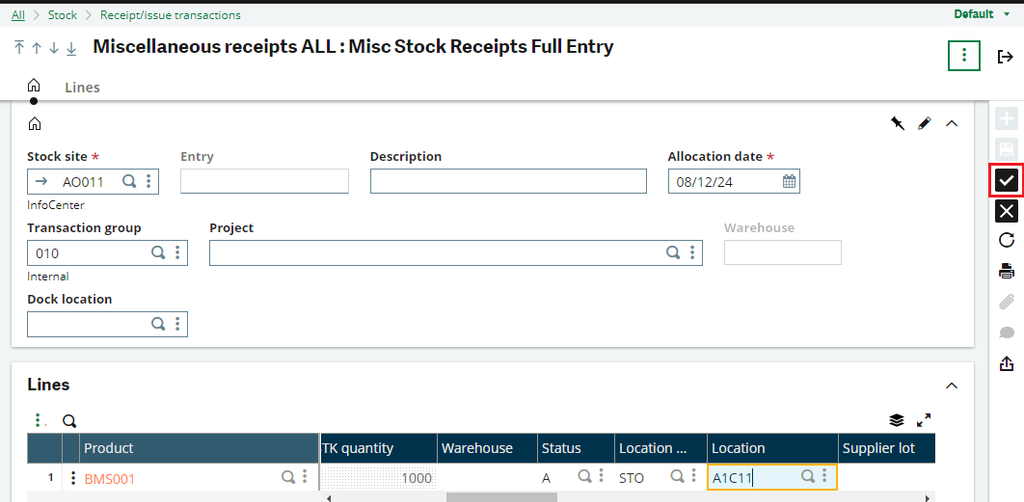
Fig 5: Create button
We have successfully added stock on Site AO011 for product BMS001.
We can verify the same by checking the stock by site

Fig 6: Verify stock using Stock By Site
Thus, we have checked how can we add stocks to a product against a site using Miscellaneous Receipt.