
When setting up a new Sage X3 V12 Patch 39 environment on a cloud-based Windows Server, we encountered an unexpected error while creating a new solution in the Sage X3 Configuration Console.
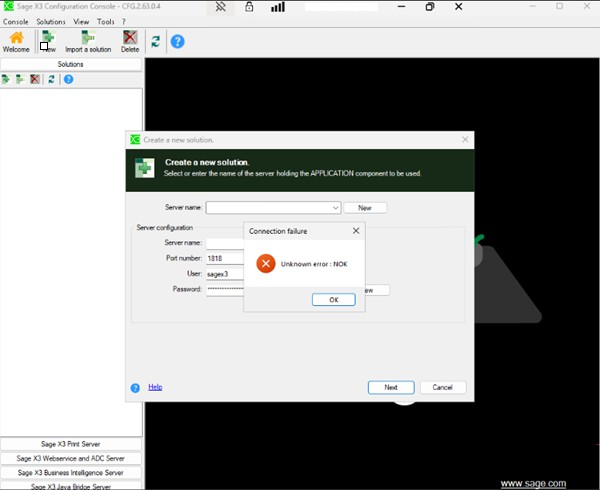
The Configuration Console displayed the following message:
Connection failure Unknown error: NOK
At first, the error did not provide any useful information about the root cause, making the troubleshooting process more challenging.
Troubleshooting Performed
Before identifying the actual issue, we performed all standard troubleshooting steps to ensure the environment was configured correctly.
- Verified all Sage X3 V12 Patch 39 prerequisites.
- Reinstalled all Sage X3 components, including the Database, Application Server, and related services.
- Confirmed that all required Windows services were running successfully.
- Verified that all required network ports were enabled and in the Listening state.
- Cross-checked firewall and network configurations.
- Reviewed server connectivity and DNS resolution.
- Validated the Sage Power User credentials.
- Restarted the Sage services after each configuration change.
Despite completing all of the above steps, the Unknown error: NOK continued to appear.
Important Checks Before Creating a New Solution
Before creating a new Sage X3 solution, ensure the following:
1. Verify Required Ports
Confirm that all required Sage X3 ports are open and listening. Examples include:
- 1818
- 8124
- 9200
- 1433
- 27017
(Port requirements may vary depending on your environment.)
2. Validate the Sage Power User Password
Ensure that the Power User password complies with the configured Sage X3 password policy. A strong password should contain:
- Uppercase letters
- Lowercase letters
- Numeric characters
- Special character
- A supported password length (configured by your Sage X3 password policy)
1. Firewall Configuration
Although optional, temporarily disabling the Windows Firewall during troubleshooting can help determine whether firewall rules are blocking communication between Sage components.
Note: Re-enable the firewall after testing and configure the appropriate inbound and outbound rules.
Root Cause
After extensive troubleshooting, we discovered that the issue was related to the cloud-based Windows Server environment.
While installing the Syracuse component we need to specify full cloud-based Windows Server
abc-WEBxyz
However, in a cloud/domain environment, Sage X3 expected the fully qualified server name instead of only the hostname.
The correct value is:
abc-WEBxyz.cor.CLOUD\X3V12
instead of
abc-WEBxyz
Once we updated the server name to the fully qualified server name (including the domain and instance), the Sage X3 Configuration Console connected successfully.
The “Unknown error: NOK” disappeared, and we were able to:
- Create the new Sage X3 solution
- Connect successfully to the Application Server
- Complete the Sage Configuration Console setup
- Continue with the remaining environment configuration
The “Unknown error: NOK” in the Sage X3 Configuration Console can be misleading because it does not clearly identify the underlying problem. In our case, the issue was not related to the Sage installation, services, ports, or prerequisites. Instead, it was caused by using only the server hostname in a cloud-based environment.
If you encounter this error while deploying Sage X3 on a cloud-hosted Windows Server, verify that you are using the Fully Qualified Domain Name (FQDN) (or the fully qualified server name expected by your environment) instead of only the server hostname. This simple change resolved the issue and allowed the installation to proceed successfully.