
The global search bar in the upper-right corner of Sage X3 is driven by the Search Index. Customers, sales orders, items, and other indexed data can all be easily found with its help. Administrators should update the search index on a regular basis to guarantee accurate and current search results, particularly following system modifications or alterations.
The Elasticsearch component, which may be installed separately in Sage X3 v12, controls the search index and collaborates with Syracuse to generate and preserve searchable data across the program.
Why Update the Search Index?
Updating the search index helps keep search results accurate and relevant. It is particularly useful when:
- New features or modules have been added.
- Customizations have been implemented.
- Large amounts of data have been imported.
- Search results appear incomplete or outdated.
- A complete rebuild of the search database is required.
Users can easily find the information they need using the global search bar if the search index is updated on a regular basis. The automatic scheduler can also be used to plan index updates for environments that change often.
How to Update the Search Index in Sage X3
Before you begin, make sure:
- You are logged in using the X3 Administrator account or a user with access to the Administration module.
- Users do not need to log out while the index is being updated. Once the update completes, the new index is automatically available to all users.
Steps:
- Navigate to:
Administration > Usage > Search Index Management
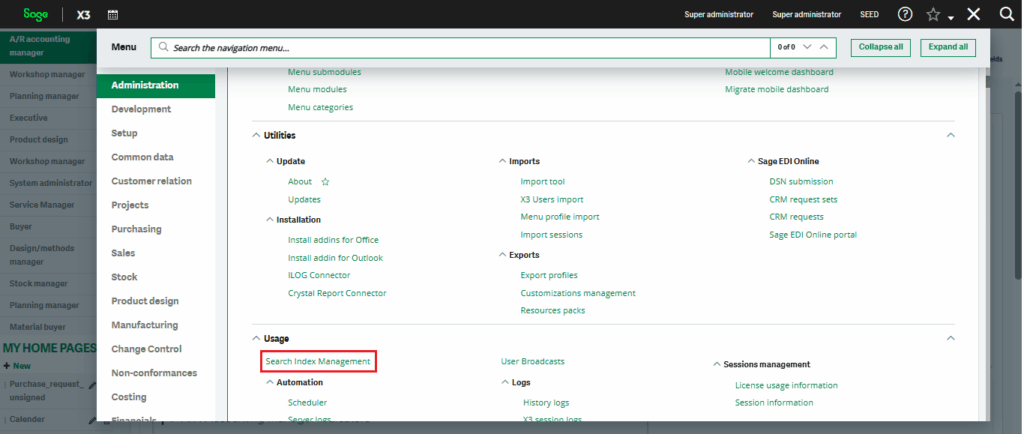
2. Open the Search Index Management function.
The Search Index Management screen provides options to control what is included in the search index.
- Entities – Select the entities you want to index.
- Leave the Entities field blank to index all available entities.
Select Delete Current Index if you want to remove the existing index before creating a completely new one.
3. Click the “Update Index” button.
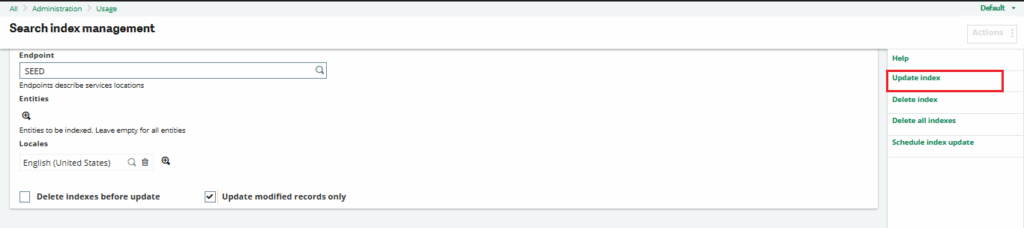
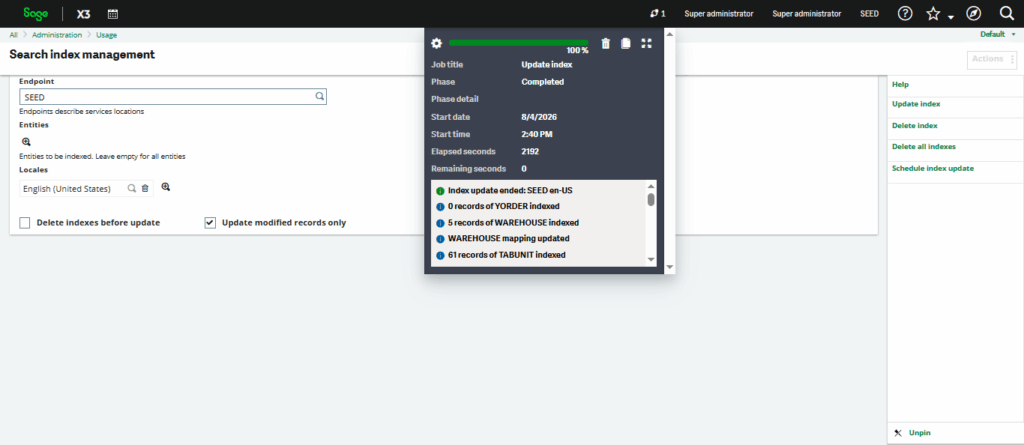
A progress window appears indicating that the indexing process has started.
During the update:
- The system displays the progress of the indexing operation.
- Once completed, the status changes to indicate the process finished successfully.
- If any errors occur, they are displayed in the message area.
Click the Log icon to review detailed execution logs if needed.
Verify the Search Index
After the indexing process completes:
- Return to the Sage X3 home screen.
- Use the Global Search box located in the upper-right corner.
- Search for an item such as Sales Order.
If the index has been updated successfully, the relevant records will
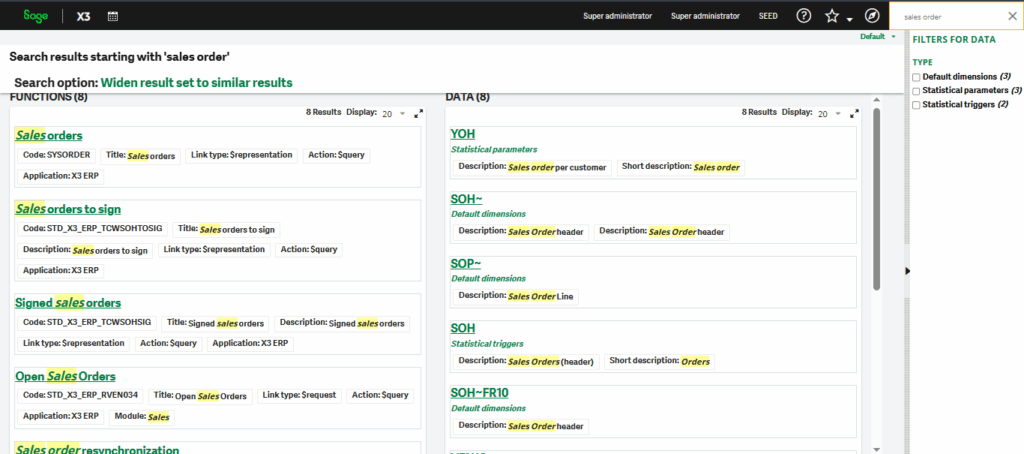
appear in the search results.
Updating the Search Index is a simple but essential administrative task in Sage X3. Keeping the index current improves the accuracy and performance of the global search feature, ensuring users can quickly find the information they need. Whether you’ve added new customizations, imported data, or made significant system changes, rebuilding the search index helps maintain an efficient and reliable search experience.