
Introduction:
In Sage X3, managing customer credit involves setting specific fields that determine the credit limits you allow for orders. These settings can trigger either a warning or a block when a customer exceeds their limit, with options for applying these rules universally or on a per-user basis. In this blog, we will explore how to configure these credit management options effectively.
Setting-up Customer Credit-Limit:
On the management tab of the customer screen, you can set up how credit checking will work for each customer by choosing one of the following options:
- Check: If you choose this, the system will monitor the customer’s credit exposure, which includes their open orders and open invoices. If their total credit exposure exceeds their assigned credit limit, their new orders will automatically be placed on hold. This hold can be overridden if the “Release” button is set for that specific order.
- No Check: If you choose this, all orders from the customer will automatically be approved regardless of their credit exposure. If the customer was previously set to “Check” and you change it to “No Check,” this will not automatically update the status of orders that are already on hold or have exceeded the credit limit. To update those existing orders to “OK,” you will need to manually check the “Release” box on the Delivery tab of each sales order.
- Hold: This option puts the customer and all their open sales orders on hold immediately, if the release flag has not been set on the orders. See below fig.1 for you reference.
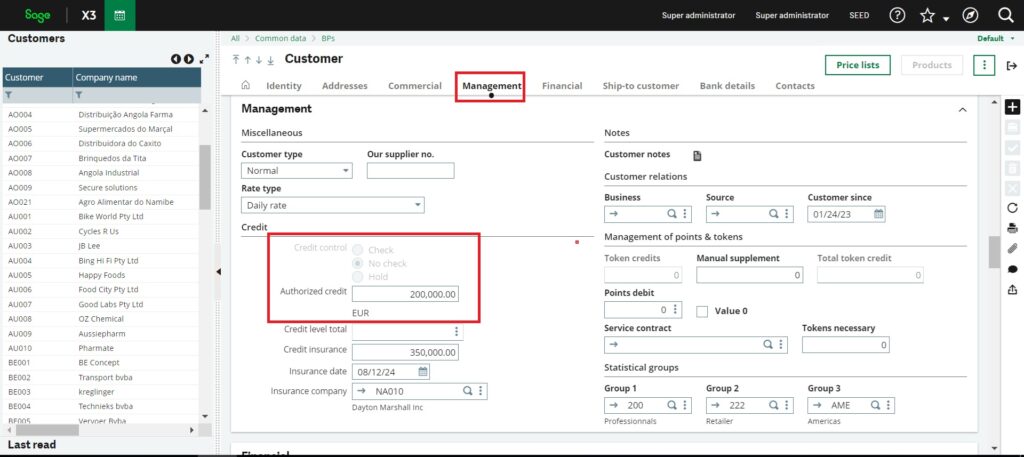
Fig.1: Credit control
Additionally, you can assign a specific credit limit amount for each customer. Leaving this field blank means there is no set credit limit, which implies unlimited credit.
PROCESSING:
In the X3 system, you can configure credit limit controls at the folder level to manage customer shipments:
- Go to: Setup > General Parameters > Parameter Values.
- Find: VEN / AUZ / SCDUNTL.
- Choose:
- Yes: The system will warn you if a customer exceeds their credit limit but will still allow the shipment to proceed.
- No: The system will warn you and prevent the shipment if a customer exceeds their credit limit.
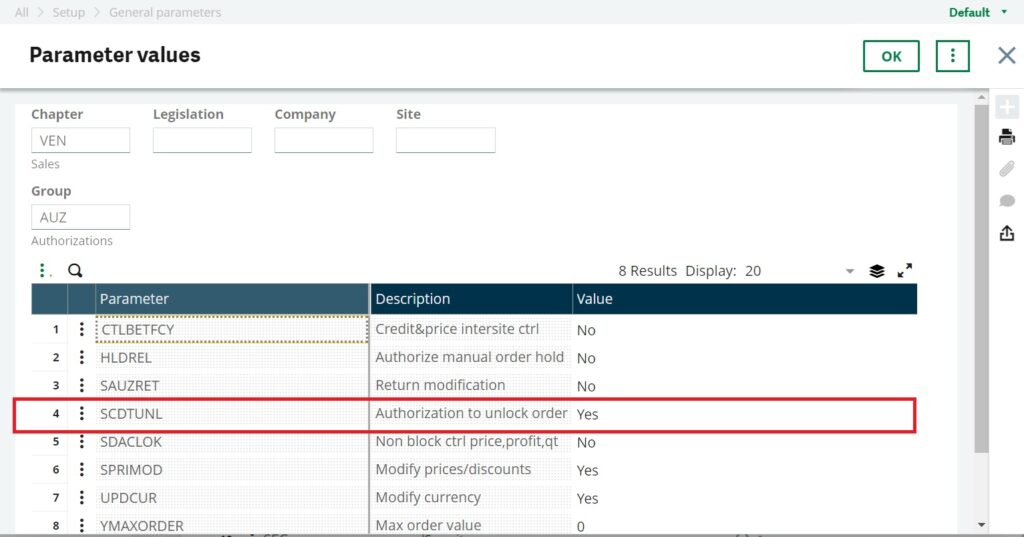
Fig.2: Parameter Values
If the folder level is set to “No,” you can allow a user to override the credit status on orders by following these steps:
- Go to: Setup > Users > Users.
- Select: The user from the list on the left.
- Click: The Parameters tab.
- Find: Sales / AUZ.
- Select: Detail from the action item.
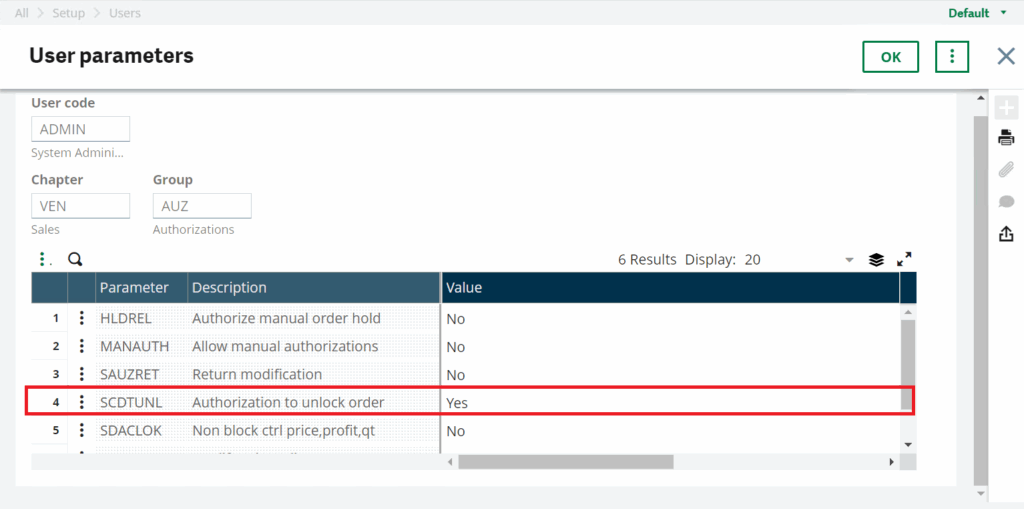
Fig.3: User Parameters
This lets you configure specific permissions for overriding credit limits.
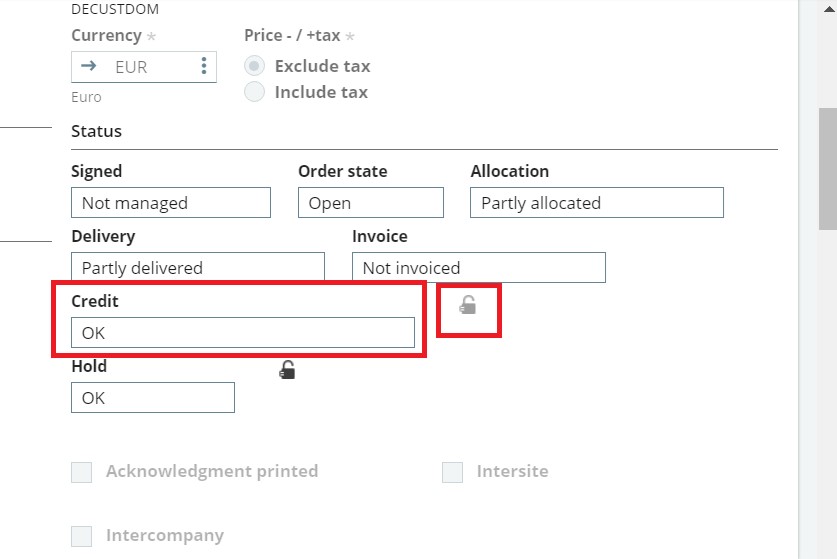
Fig.4: Credit Status and Lock Icon
When an order’s Credit Status is “Limit Exceeded,” the user can release the order from credit hold by clicking the lock icon next to the Credit Status field. This action will unlock the order and allow it to proceed.
Conclusion:
Checking Customer credit-limit in Sage X3, helps manage customer credit risk by setting up warnings or preventing shipments when limits are exceeded. This ensures better control over credit and helps maintain financial balance and security.